UIT (Transport Loading Unit) is the mandatory declaration submitted to ANAF for road transport of goods on the territory of Romania. It is completed and submitted electronically before the start of the transport.
Document types UIT
The transport document is chosen according to the type of operation:
- Purchase — goods purchased from domestic suppliers.
- Import — goods brought from outside the EU.
- Delivery — goods shipped to customers.
- Export — goods sent outside the EU.

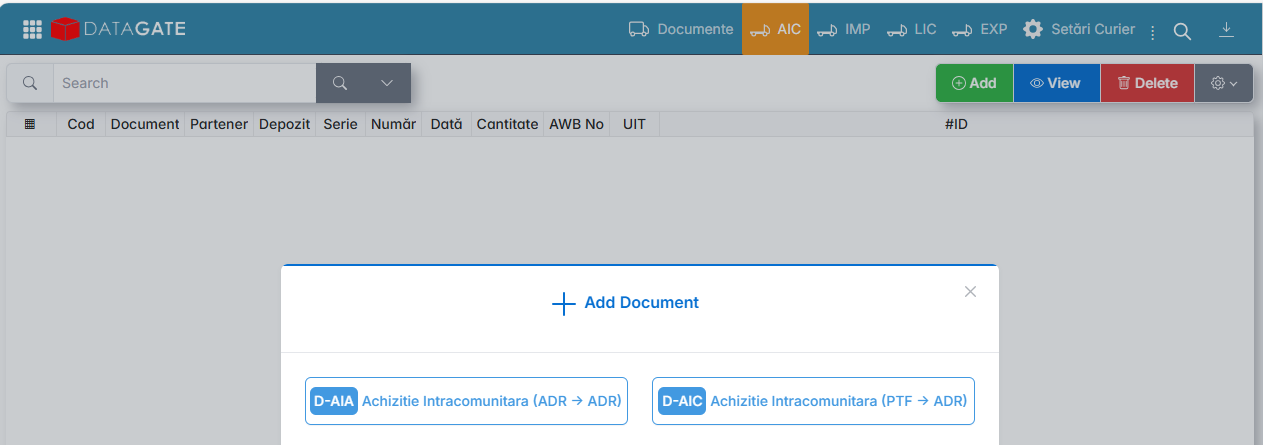
Create Document
Click Add and select the document type.
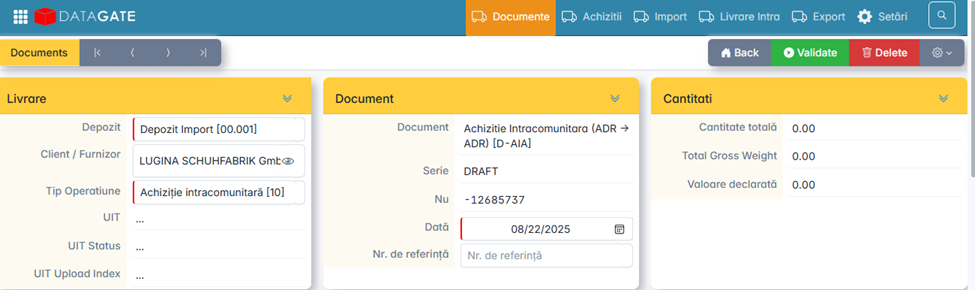
The first part of the document shall be completed:
- Warehouse — the warehouse involved in transport.
- Customer/Supplier — the trading partner. The billing data can be accessed directly by clicking on the symbol next to the field.
- Operation Type — is selected from the list or automatically applied depending on the document type.
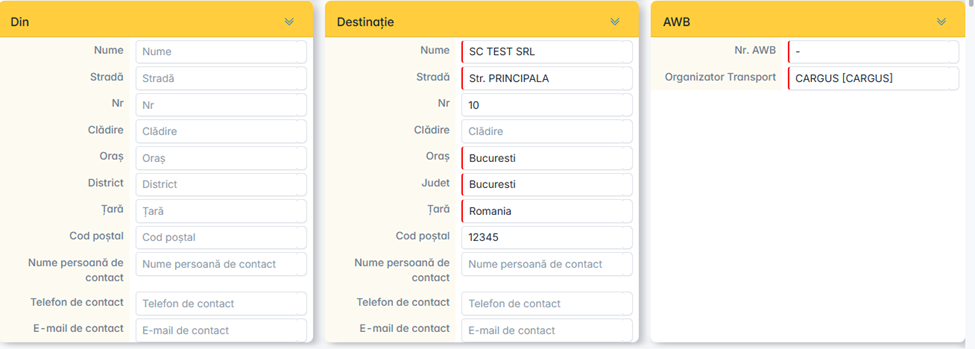
The second part is filled in depending on the type of document:
- From — the shipping company or the Border Crossing Point / Customs Office.
- Destination — implicitly the address of the registered office; may change if the destination differs.
- AWB — select the courier and, if applicable, enter the AWB number.
Content and Shipping
In the Content (eTransport) window, click Add to insert the items. The information is entered manually or by Copy/Paste from an XLS file.

In the Transport section, the following must be filled in:
- License plate number — in capital letters, without spaces or dashes.
- Trailer — if applicable.
- Shipping date — current day or maximum 3 days in advance.

Related documents
In the Documents section, click Add. Select the type of document, enter the date and number of the invoice. Multiple lines can be added. Comments are optional.

Generate UIT code
From the Settings menu, click UIT Generate.
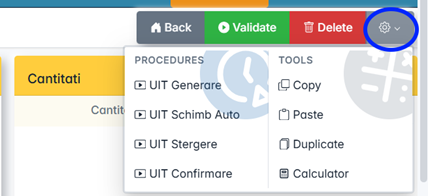
The document should not be issued before generation — if there are errors, they can be corrected. If the generation is successful, the document is issued automatically.
In case of error, the following shall be checked:
- Address of the customer or supplier — the country code must be correct.
- Operation and Application Type — must match.
- Destination address — filled in correctly.
- eTransport content — all fields filled in.
- License plate number — capital letters, without spaces or dashes.
The generated UIT code can be seen in the Delivery window or in the Logs window.

Operations after generation
From the Settings menu the following are available:
- Auto Exchange — automatic change of transport data.
- Delete Code — Cancel the generated UIT code.
- Shipment Confirmation — confirmation of the completion of the shipment.
On the Logs page, all transmissions to ANAF and any errors are displayed.
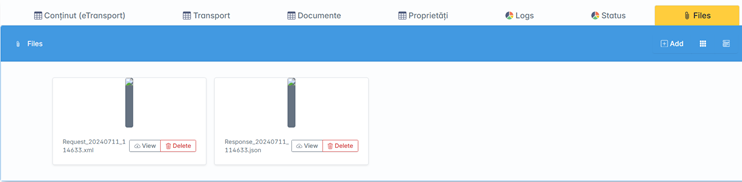
From the Files page, the response received from ANAF can be downloaded .