Create an order
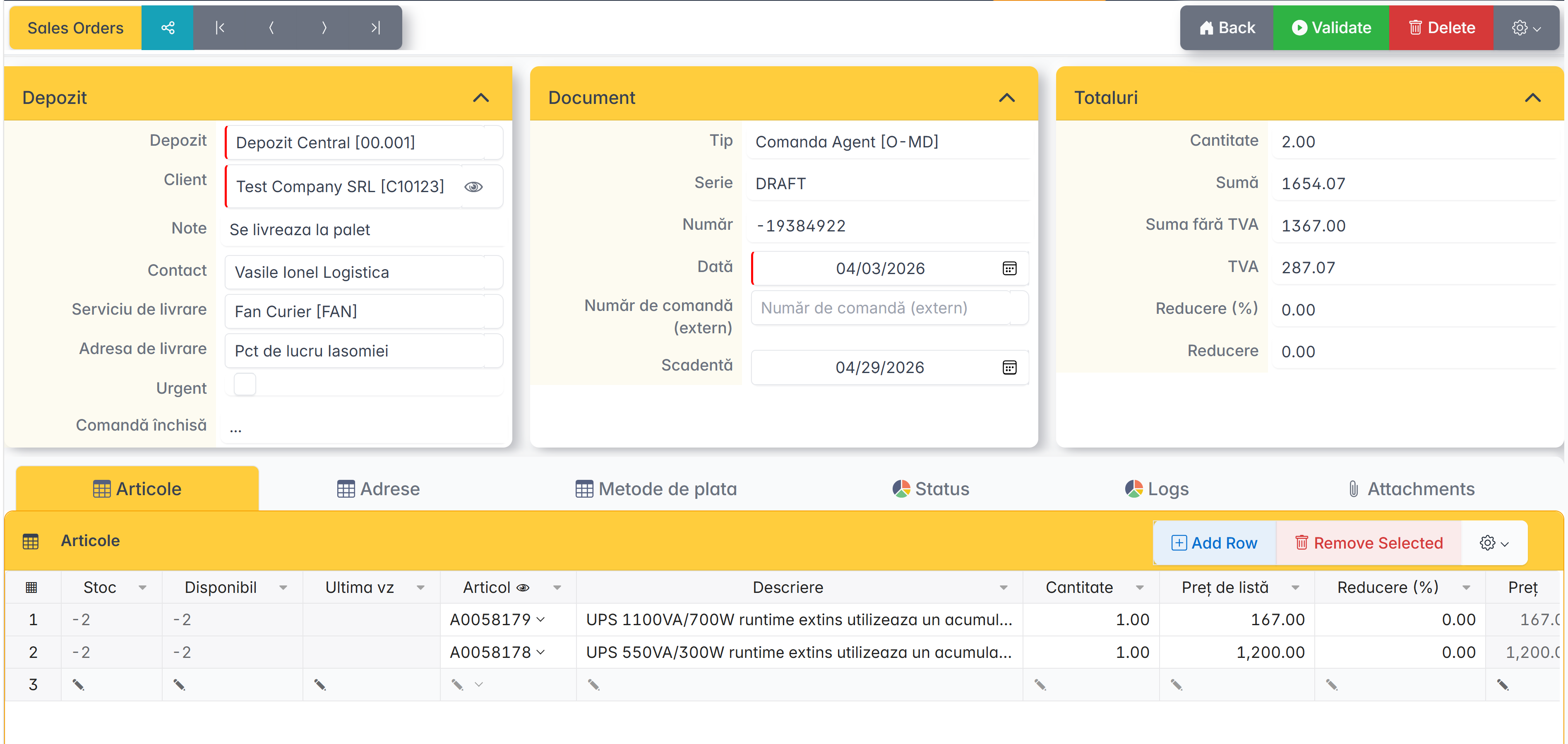
- From the Orders menu, click Add and select the document type.
- Fill in the header: Customer, Warehouse, Salesperson, Shipping address, Shipping method.
- Add items by searching or Copy/Paste from Excel.
- Check prices, available stock and trade markup.
- Save or issue the command.
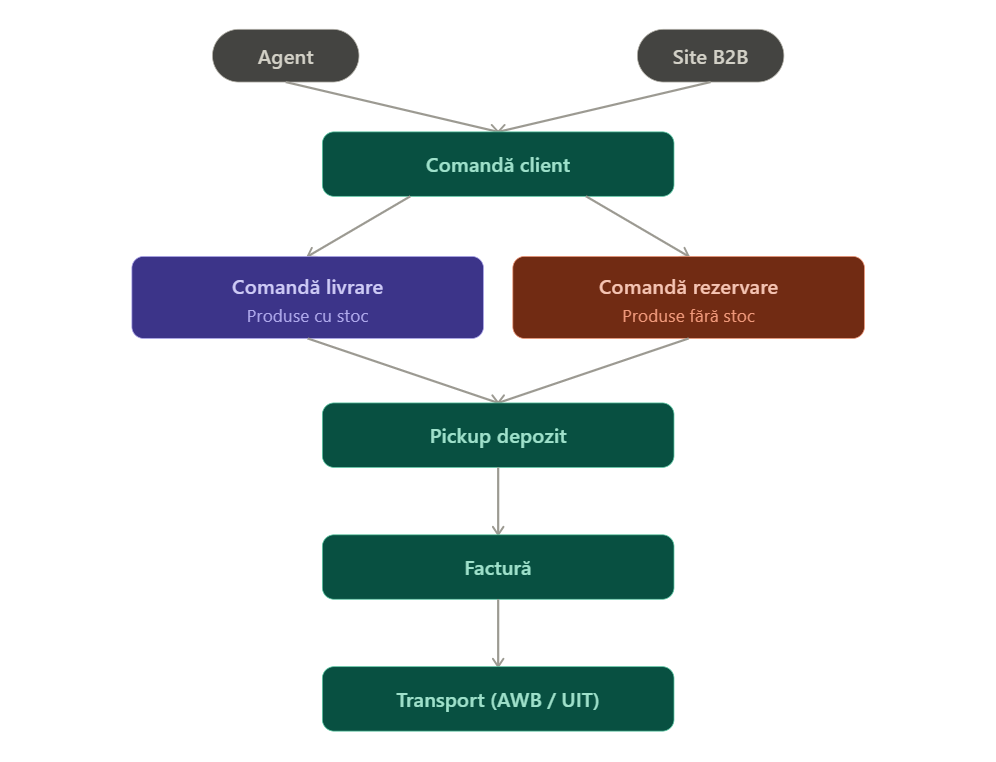
Conversion to invoice
The order is converted to an invoice in two ways:
From the order — open the order and press Billing. The application generates the invoice with the data retrieved automatically.
From the invoice— When creating a new invoice, select the order from the Order field. Items, prices, customer, address are automatically retrieved.
Through Scan - the order is transmitted to the scanner, the invoice will be generated from the goods confirmed with the scanner. Intermediate a second verification scan.
Order Closing
A delivery order is closed at the time of shipment, even if not all the goods have been found.
A global order can be delivered in stages, through successive delivery orders, the application keeps track of the remaining quantities to be invoiced, allowing successive invoicing on the same order.