The collections module manages the payments received from customers and their allocation on the issued invoices.
Record a receipt
- From the Receipts menu, click Add and select the receipt document.
- Fill: Customer, Amount, Payment Method (cash, bank transfer, card, check, promissory note, clearing), Payment date, Reference (PO number, bank reference, etc.).
- It allocates the collection to the bills it extinguishes. The app displays the list of the customer's outstanding invoices, allowing the amount to be allocated to one or more invoices.
- Save or issue the document.
Allocation on invoice
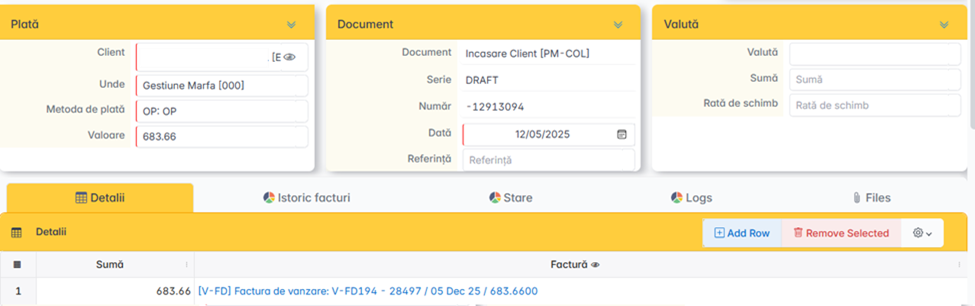
The payment allocation on the invoice is done in the Details window.
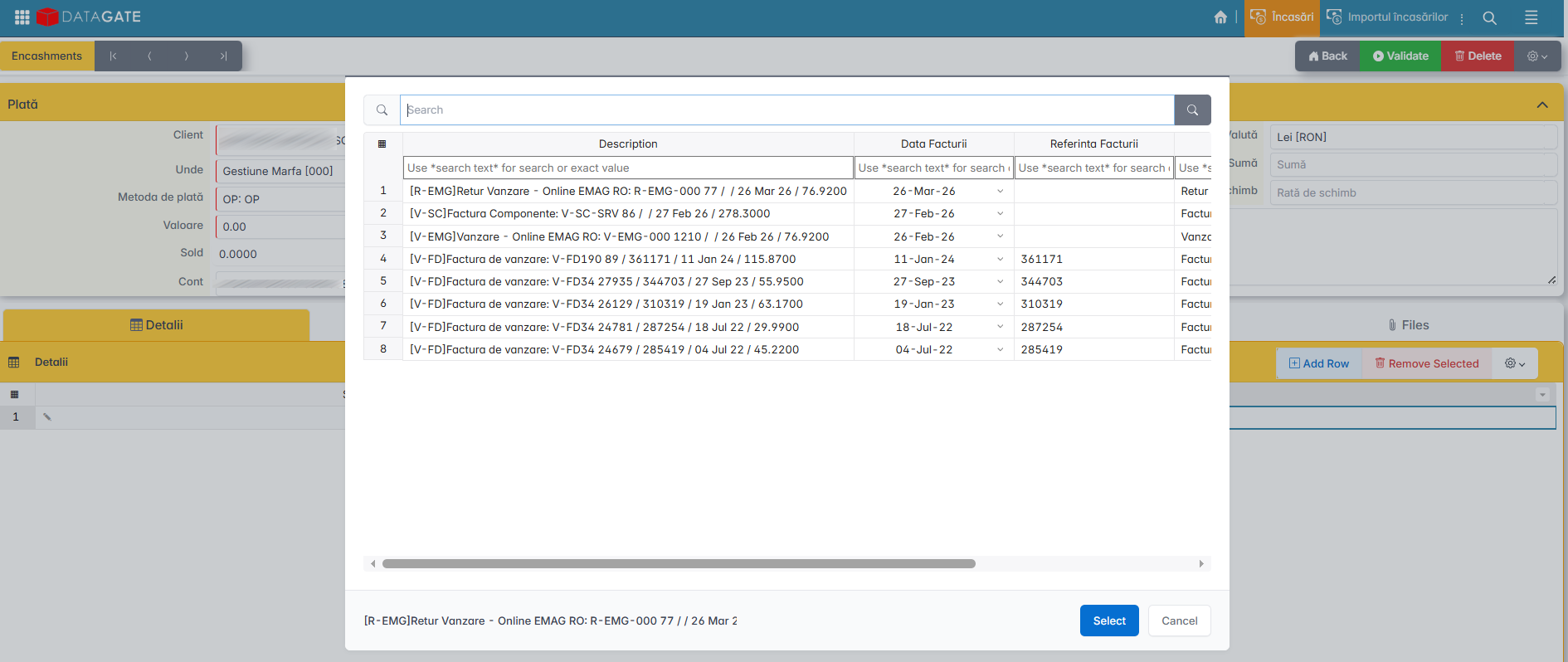
- Click Add Row and double-click on the field next to the Invoice column.
- A search window opens with all invoices issued to the selected customer. The search can be done by invoice number, quantity or value.
- Select the invoice or invoices you want (multiple selection like in Excel) and press Select.
- If the payment differs from the invoice amount, edit the value in the field to the left of the invoice.
- Validate the document to allocate the payment.

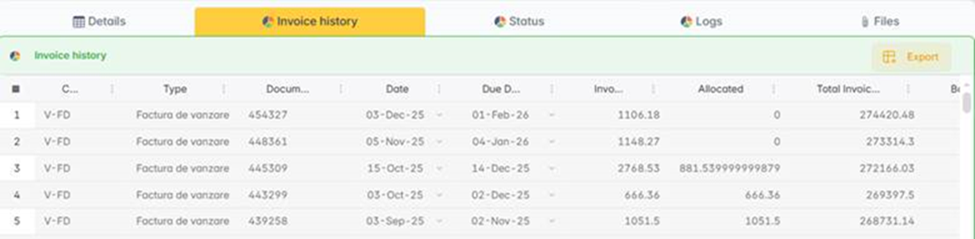
In the Invoice History window, you can check the amounts previously allocated on the customer's invoices .
FIFO Allocation
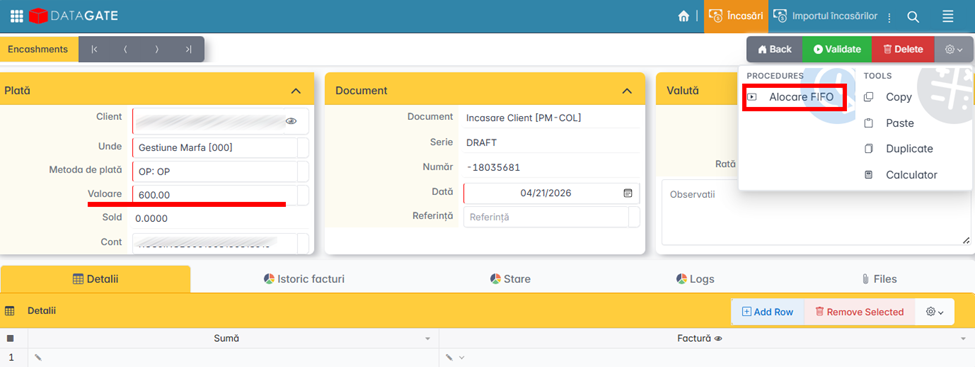
Payment can be automatically allocated according to the FIFO (first in, first out) method — from the oldest invoice to the most recent.
- Fill out the Payment window and enter the amount of your receipt.
- From the Settings menu, click FIFO Allocation.
- The document is validated to allocate the payment on invoices.