Receipts from bank statements, payment processors, or courier systems can be automatically imported from an Excel file.
Create document import
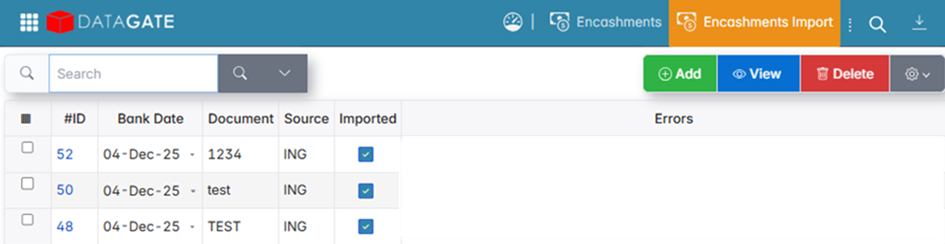
- In the Import Receipts menu, click Add.
- Select:
- The source — for example, the bank.
- Date — the date of the extract.
- Account — the account to which the amount was collected.
Import from Excel
- In the Receipts section of the document, click Add Row.
- Organize data in Excel into 3 columns: invoice number, payment amount, payment type.
- Copy the data from Excel and paste it into the import document.
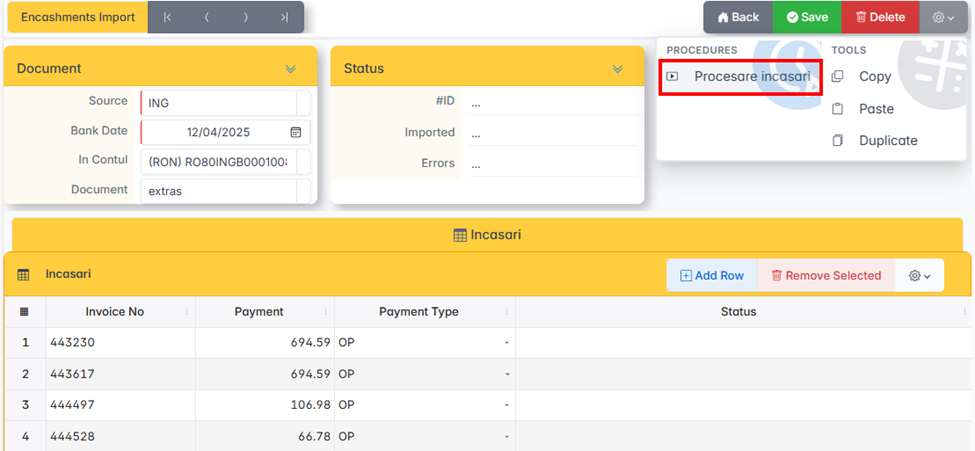
- From the Settings menu, tap Process Receipts. The app allocates payments to invoices and saves the document automatically.
Error handling
If there are any errors, the app flags them after processing. Open the document to see them in detail.

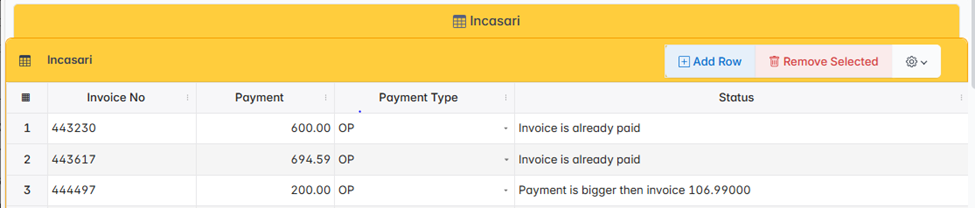
Errors occur if:
- The payment has been previously allocated for that invoice (The invoice is already paid) — the payment is not saved on these invoices.
- The imported value and the value on the invoice are different.
To delete a payout, select it and click Delete Selection. To save the document, click Save.