What are they?
Certain operations in Datagate take too long to execute while the user waits: recalculation of stocks across all locations, generation of a complex report on a year of data, synchronization with an eCommerce platform. These operations run "in the background" — the user launches them and continues working, and when they are finished, they receive a notification.
The background task engine is Hangfire, a robust open-source scheduler integrated into the Datagate platform.
Admin Dashboard
The administrator (or user with corresponding rights) has access to a dedicated interface where he sees all tasks: scheduled, running, successfully completed and failed. Each task displays the execution time, the parameters with which it was launched and, in case of error, details about what went wrong.
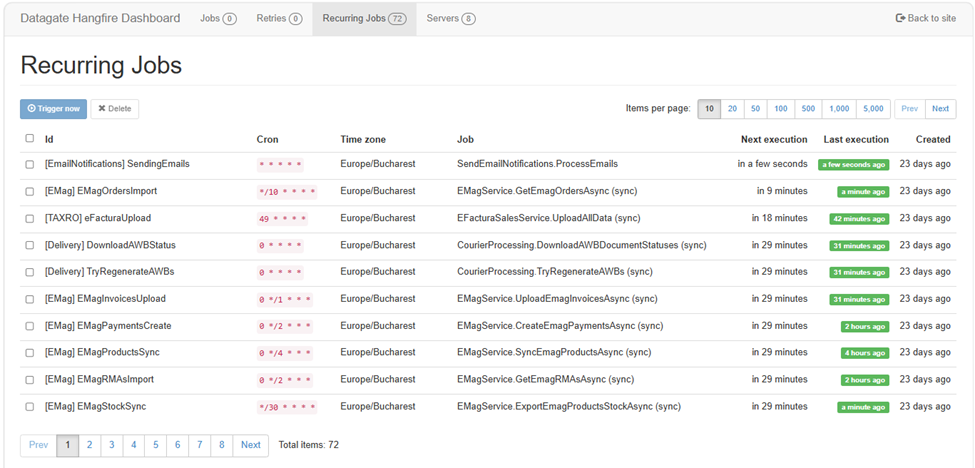
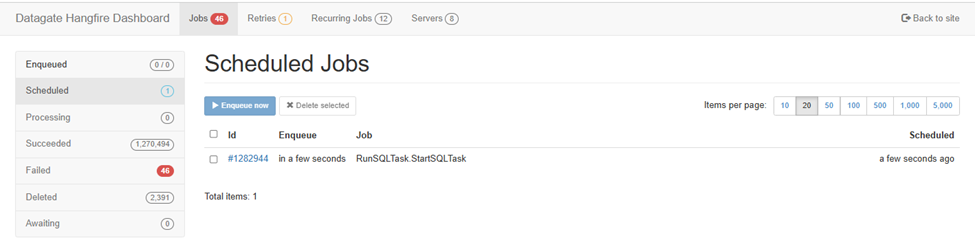
Task Distribution
Not all tasks are created equal. Some can run in parallel without affecting each other — for example, generating reports for different stores. Others must be executed sequentially, following an order — for example, processing documents in chronological order.
Datagate automatically manages this distribution: parallel tasks are launched simultaneously on available resources, and sequential tasks enter a queue. The distribution takes into account the nature of the task and the current load of the server.
User-Launched Tasks
When a user launches an expensive operation — for example, an inventory recalculation or a multi-month analysis report — Datagate doesn't keep them locked in front of the screen. The operation is taken over by the background tasks engine, and the user can continue working. At completion, he receives a notification email with the result: success (with the resulting link or file) or error (with details about the cause).
Programmed SQL scripts
The administrator can create custom SQL scripts that run automatically, at configurable intervals:
| Frequency | When it runs |
|---|---|
| Schedule | Every hour |
| Daily | Once a day at the configured time |
| Weekly | On the configured day and time |
| Monthly | On the configured date and time |