Open the scanner and start the installation.
- Connect the scanner to Wi-Fi.
- Enter your Gmail username and password (create a Gmail account that will be used for scanners).
- Access the following link and print the file. Staging Barcodes Generated by STAGENOW
- Open the Stage Now app from the Apps menu and scan the printed codes (they can't be scanned from the screen).
- The Play Store app opens. If the app does its Update, it waits until it finishes.
- From the Play Store application, TeamViewer Quick Support and TeamViewer Host are installed .
- Open the applications one at a time and press accept the required permissions.
Host - does not connect or assign the device.
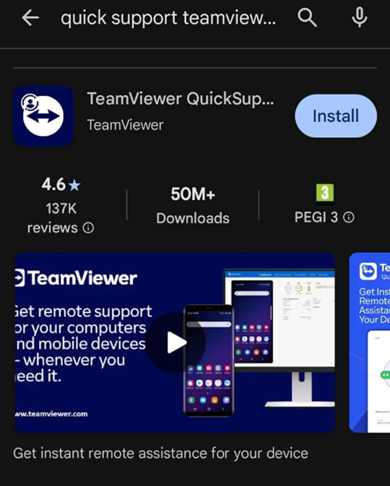
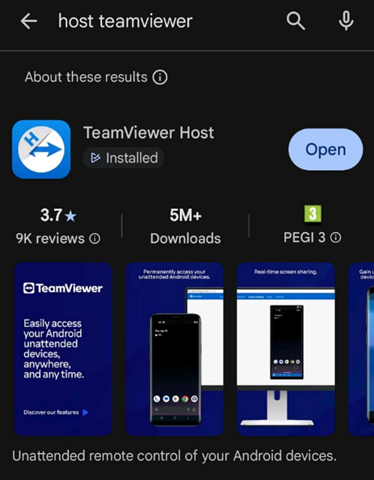
To connect from the computer to the scanner and transfer files, follow the steps below:
- The Quick Support app opens. An ID consisting of 9 digits will be generated in the application.
- Open the Team Viewer app on your computer and enter your ID.
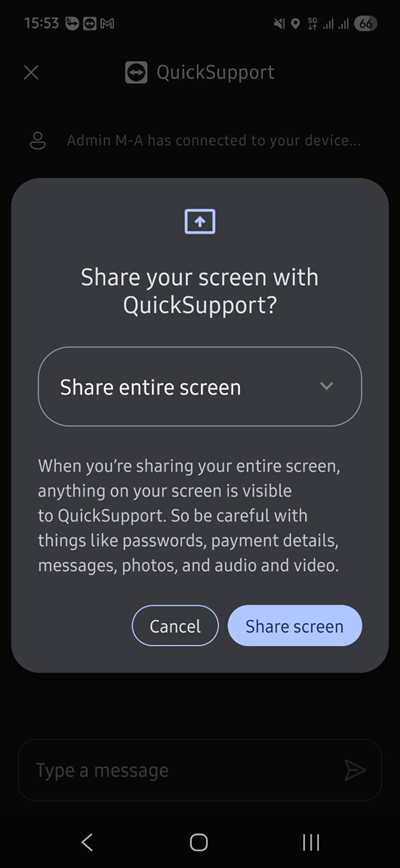
- Allow Access is allowed on the scanner and Share Screen or Start Now is pressed .
Attention! Connecting to the scanner is only possible if you have a license for Team Viewer that also allows you to connect to Android devices.
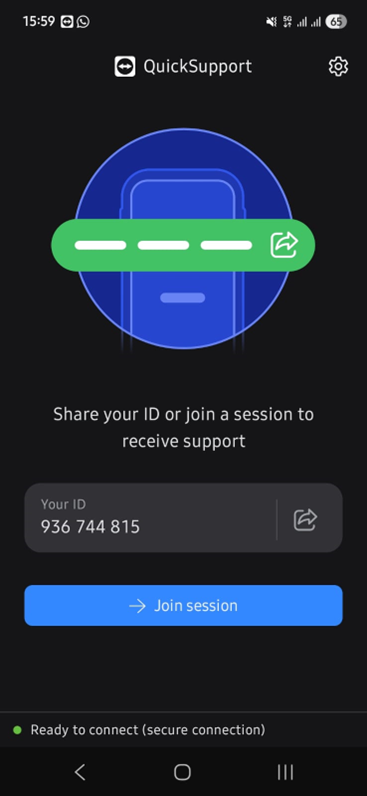
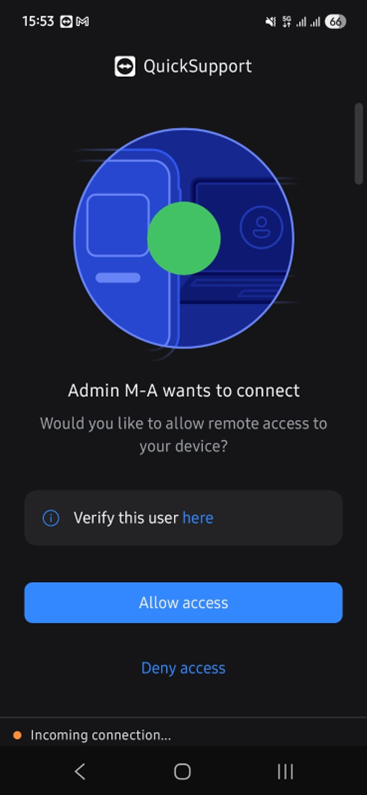
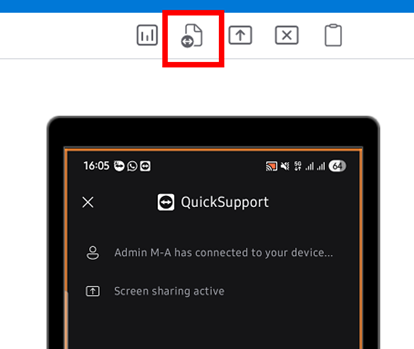
- To transfer files between devices through the Team Viewer application, on your computer, in Team Viewer press the Document Transfer key.
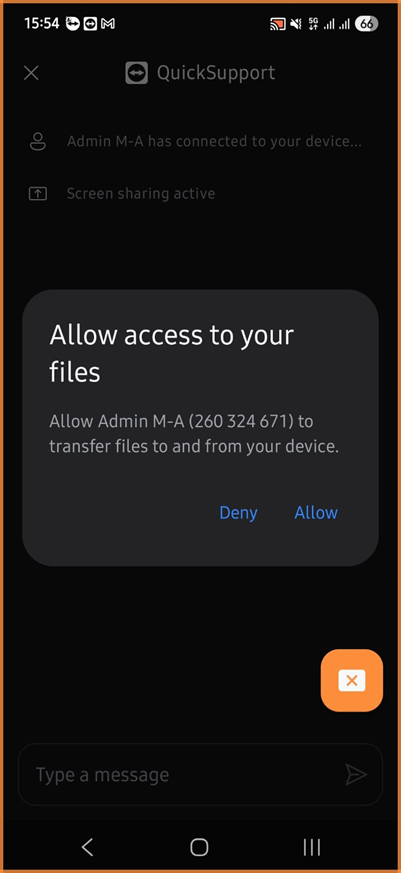
- On the scanner, click Allow.
- The following window will open.
now it will be possible to transfer the ICS application from the computer to the scanner. On the scanner, choose the folder (Downlods).
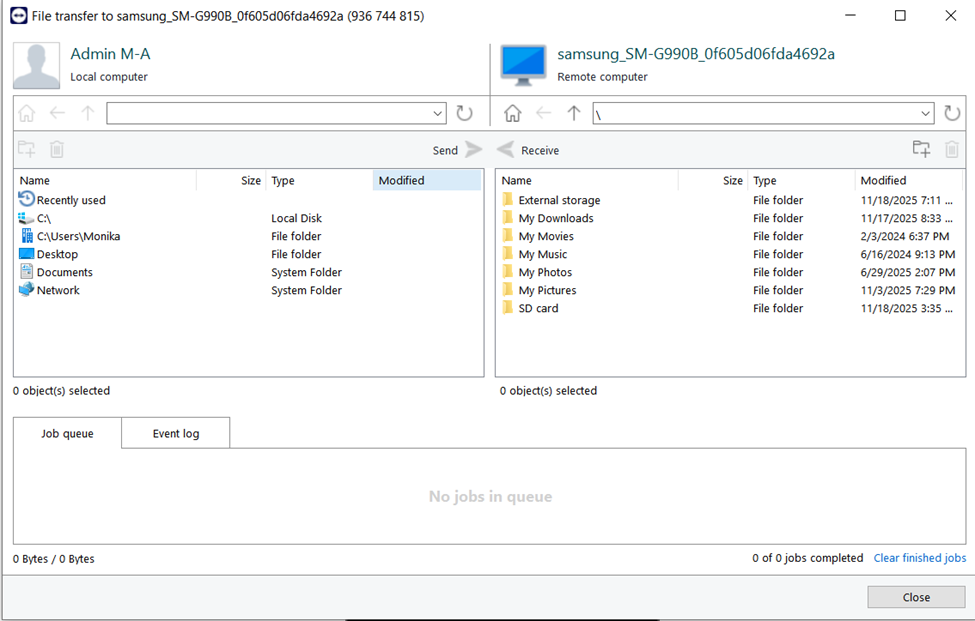
- The Downloads folder opens and from here the ICS application is installed.
- From the scanner's application menu, Data Wedge opens .
This is where Profile0 Default is selected.
- Profle0 - check Enabled.
- Intent Output - Enabled is checked.
The Intent Output content is introduced:
- Intent action: com.symbol.datawedge.DWDEMO
- Intent category: android.intent.category.DEFAULT
- Intent delivery: Broadcast intent is selected
- Component Infomations opens . Press the dot key and select it from the ma list . ICS.
After completing the settings for the scanner and ICS, verify that it scans the barcodes in ICS.