Shipping Types
Free shipping (no order)
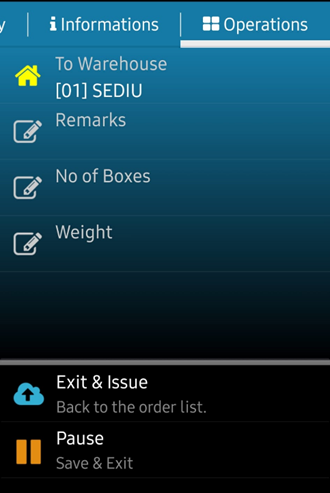
It is accessed from the Documents menu → Shipping without an order. The carrier scans the items they ship and enters the recipient in the Operations menu. There are no item or quantity restrictions — you scan what is actually being sent.
Shipping with order
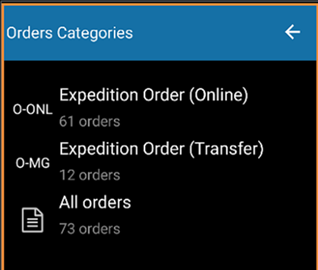
The Shipments menu opens and the order from the list is selected. The order contains the list of items and quantities that need to be shipped.
Important restriction: In order-based shipping, you can't scan items that aren't on order, and you can't scan quantities larger than ordered. If it is tried, the scanner emits an audible warning.
The shipment can be done classically (item by item) or using guided scanning.
Guided Shipment Scanning
Based on the command, the program guides the operator step by step:
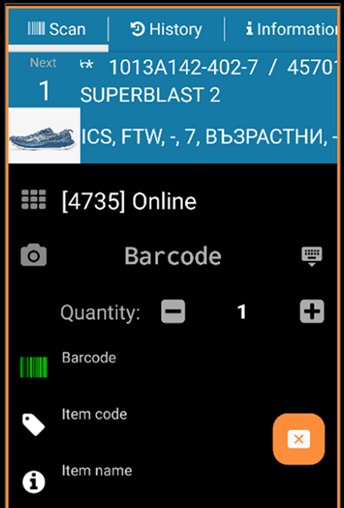
The Scan window — displays in the blue area the next item to be picked up and the quantity. The guiding criteria are related to the classification of the articles (category, subcategory, location).
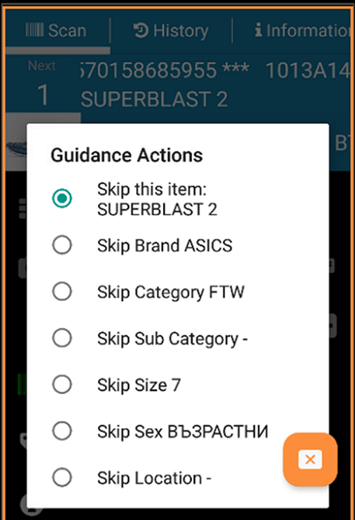
The operator can change the guiding criterion, jump to the next brand or category, or move to the next item — by clicking on the blue area in the Scan window.
History window — displays the scanned items in the order, quantitatively and in detail.
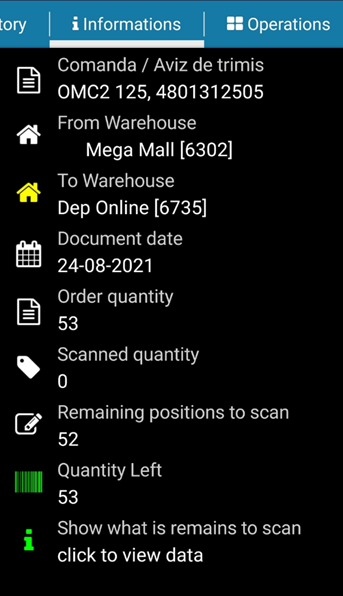
The Information window — displays the order details. The Show what's left to scan key shows the remaining items; The list updates after each scan. Items can be added manually by selecting them from this list.
Shipping Flow Summary
- Go to Shipping from the main menu
- Select Order
- Scan articles (classic or guided)
- Check History
- Tap Show what's left to scan from Info
- Save and continue later, or exit and issue the document