What is it
The label printing module allows you to label products directly from the scanner, using a mobile printer connected via Bluetooth (usually Zebra ZQ510 or ZQ620).
Labeling Modes
Free labeling — from the Labels menu, the operator scans an item and prints the label. Useful for reception, punctual price changes or replacement of damaged labels.
Guided Labeling — From the Guided Labeling menu, the operator receives a list of items that require new labels (usually based on a price change order). The program guides the operator through the list, item by item, ensuring that all labels are printed.
Guided tagging is especially useful in pricing campaigns that affect hundreds or thousands of items — the operator doesn't have to manually search for each item, but follows the automatically generated list.
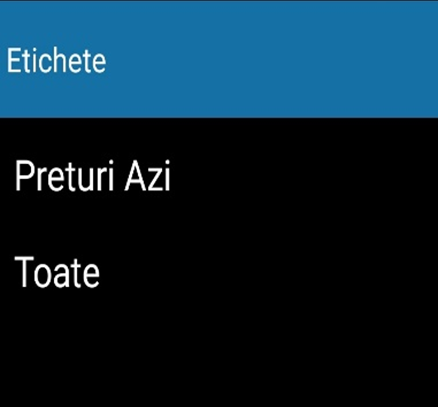
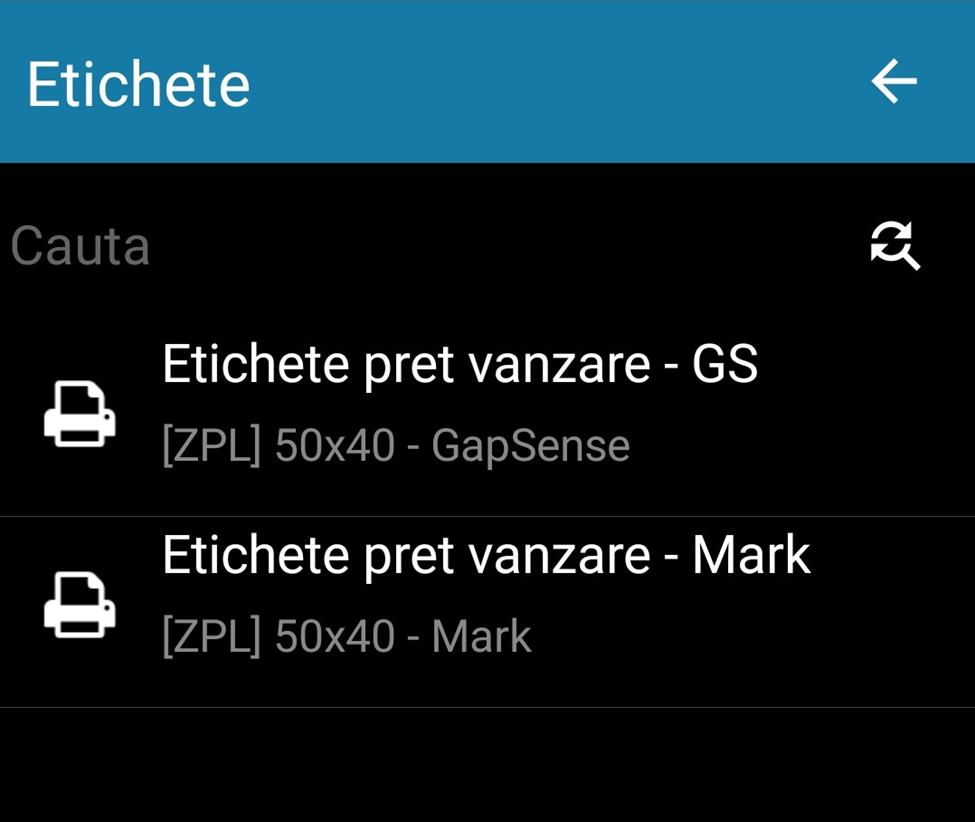
Press the Print key to turn on Bluetooth. The label will be printed after scanning the barcode of the item.
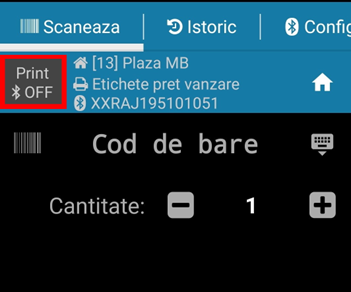
If the key is OFF , the label will not be printed.
Also in this window you can see the classification and price information of the scanned product.
Printer Setup
Pairing the scanner with the printer is done from the Device menu → Printer Settings or from the Labels → Printer Set→up menu. See the Printer Setup page for the detailed procedure.