The association of the 2 devices can be done either from the Device menu or from the Tags menu.
In the Device menu, select Printer Settings.
In the Labels menu, select a label and from the Setup window press Printer.
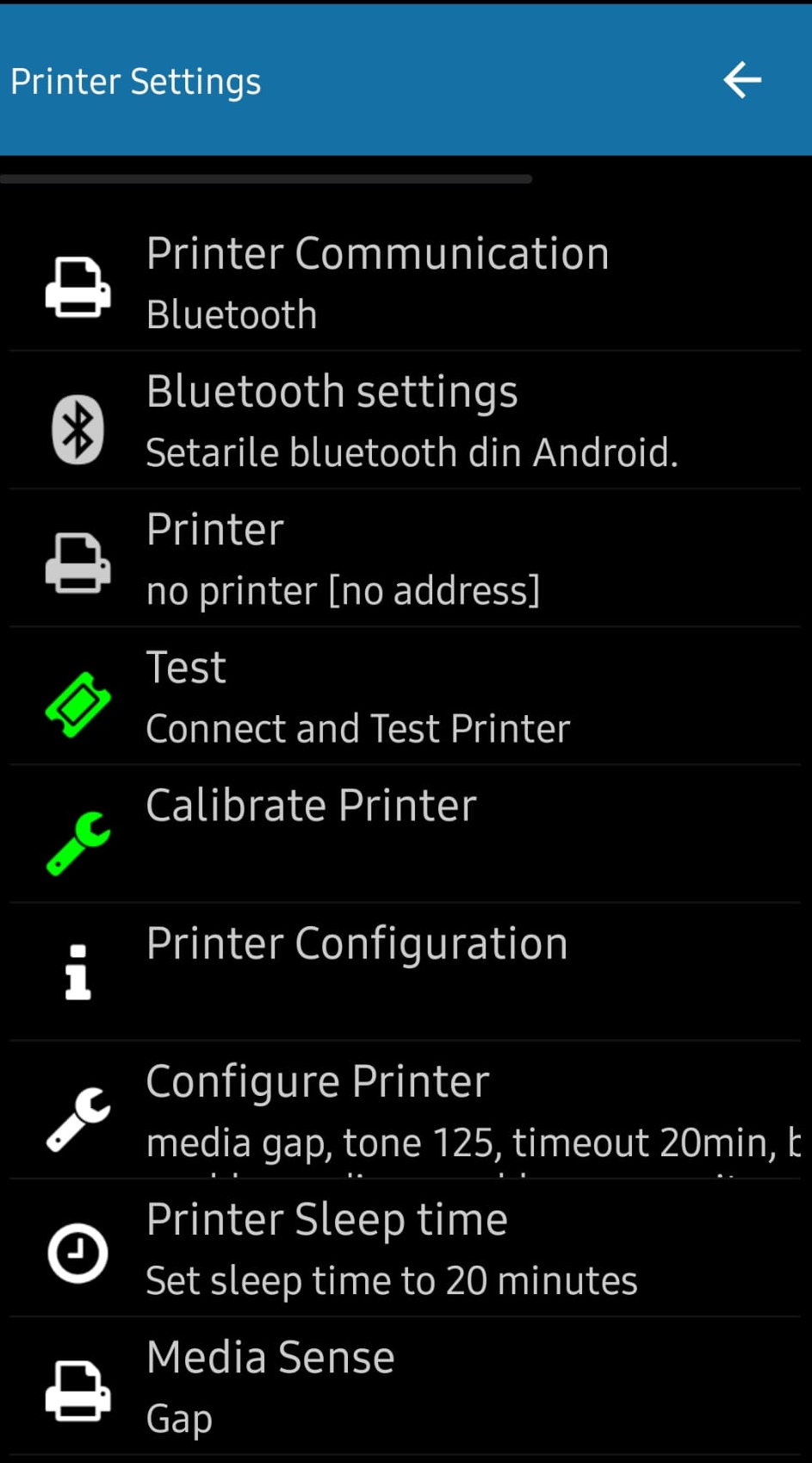
- Printer Communication - Bluetooth.
- Bluetooth settings - in this menu the scanner is paired with the label printer.
-
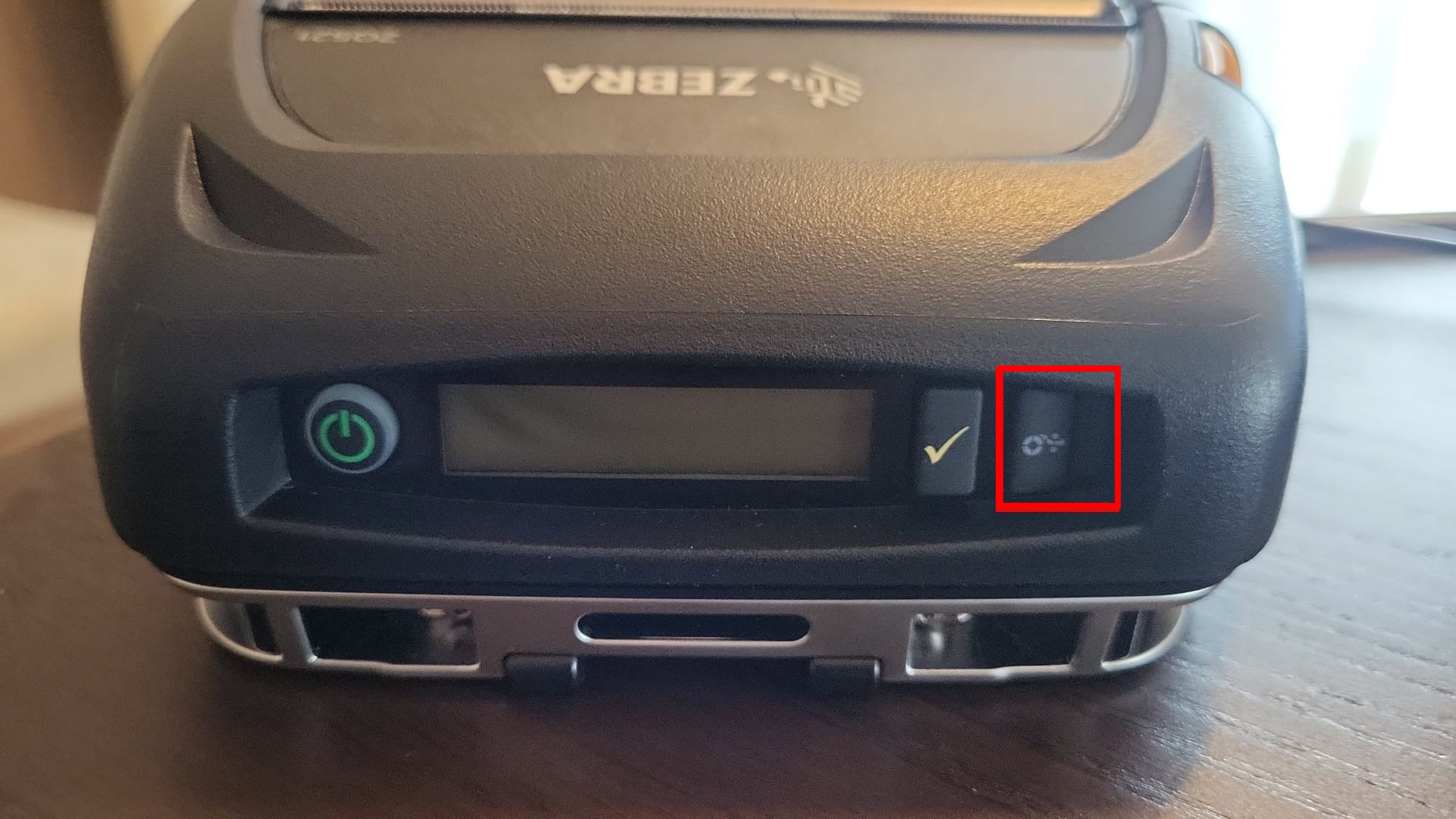
- For ZQ510/ZQ620 printers, press the printer's Feed key until the Bluetooth sign appears on the printer's display (Bluetooth will be enabled on the printer).
-
-
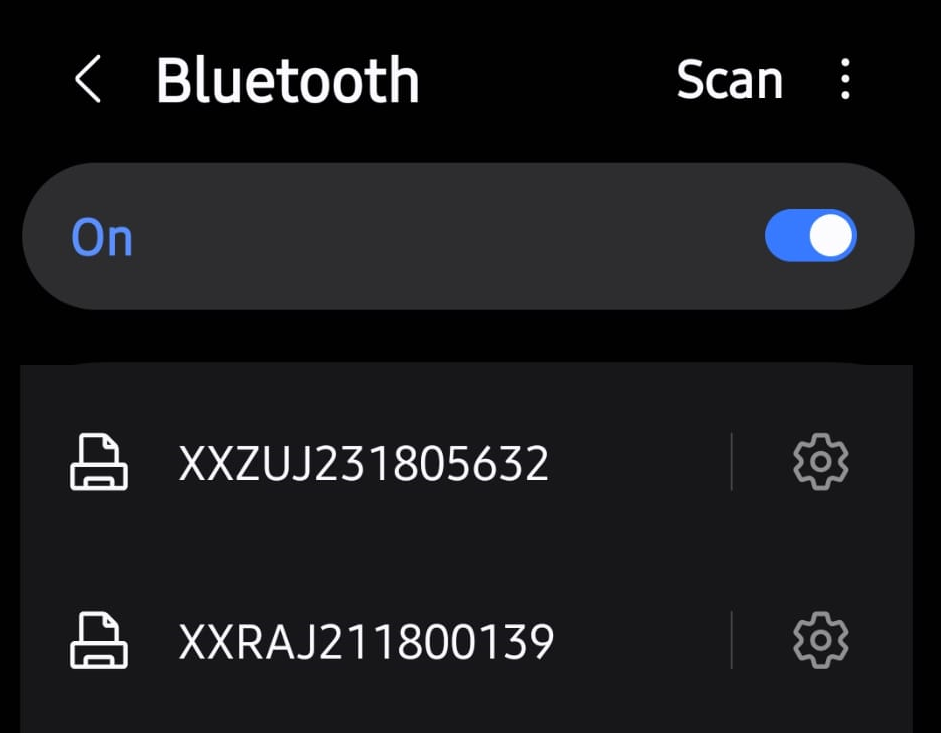
- on the scanner, tap Bluetooth Settings and turn on Bluetooth. The scanner will search for nearby devices.
- Select the printer code. Check that the same code is on the back of the printer, the code is XXR in shape...
-
-
- A pairing code will appear on the scanner and printer screen.
-
Confirm the pairing key on the printer and scanner.
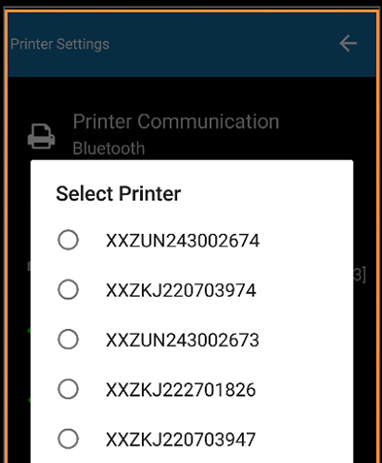
- Go back to the previous menu (Printer Settings), press the Printer key and select Printer.
To send the settings to the printer from the Printer Settings menu, press the keys:
- Configure Printer - the printer will restart, wait until it restarts.
- Printer Sleep Time - the printer will close after 20 minutes of inactivity.
- Media Sense - depending on the label select Gap, Black Mark or Journal.
The printer is always calibrated using the scanner. Press the Calibrate Printer key whenever the label is changed.
To run the label you click on the Feed button of the printer, do not pull the price label from the printer.
Printing to a zebra printer is writing data directly to a printer port.
There is no bidirectional communication or printer pooling like you know on windows.
So, scanner does not know that printer is out of paper.