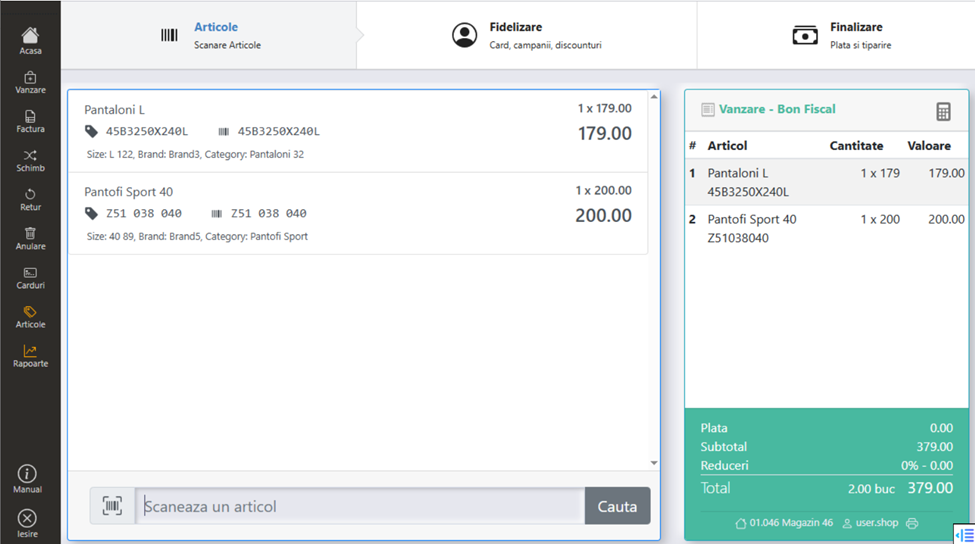
To start a new sale, press the New Sale key on the main menu.
1. Introduction of articles
In the sales window, the items are inserted successively, by one of the methods:
- Barcode scanning — with the scanner, the fastest method
- Manual entry — type the barcode or item code
- Search — enter a partial name or partial code and press the Search key. The item is selected from the list of results
The item and price are automatically displayed in the sale window.
2. Options per item
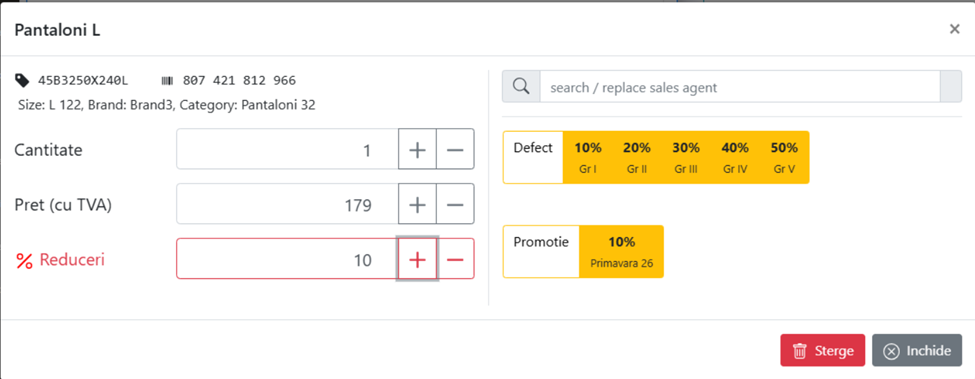
To edit an item on sale, select the item you want. Available options:
- Change quantity — change the quantity for the selected item
- Change the sale price — if the user's rights allow it
- Manual discount per item — an individual discount is entered with justification
- Seller registration — scan or enter the seller's ID
Click Close to save the changes or Delete to remove the item from the sale.
3. Loyalty card sale
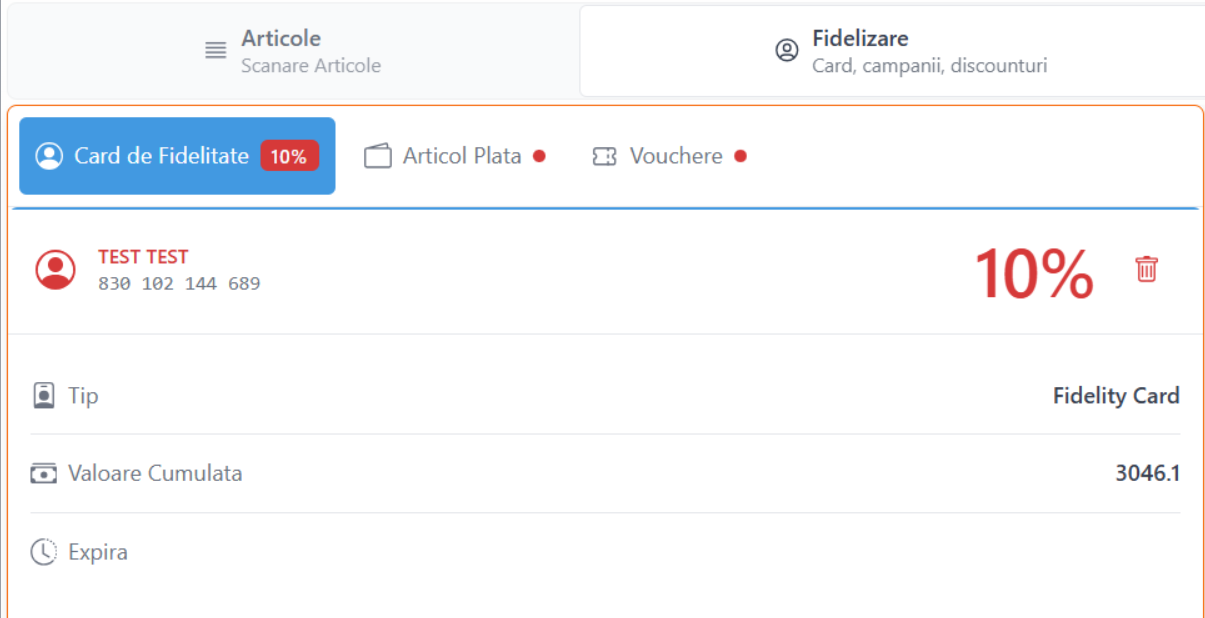
The loyalty card is inserted after scanning the items. In the Loyalty Card section, enter the card number and click Search. If the card is recognized, the customer's name, cumulative amount, discount percentage, and validity period are displayed. The discount is automatically applied to eligible items.
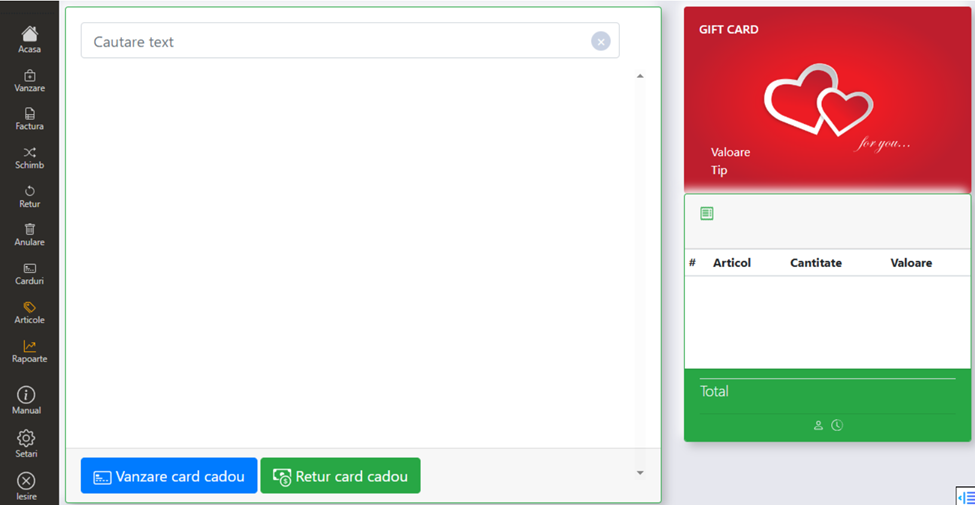
4. Gift Card Sale
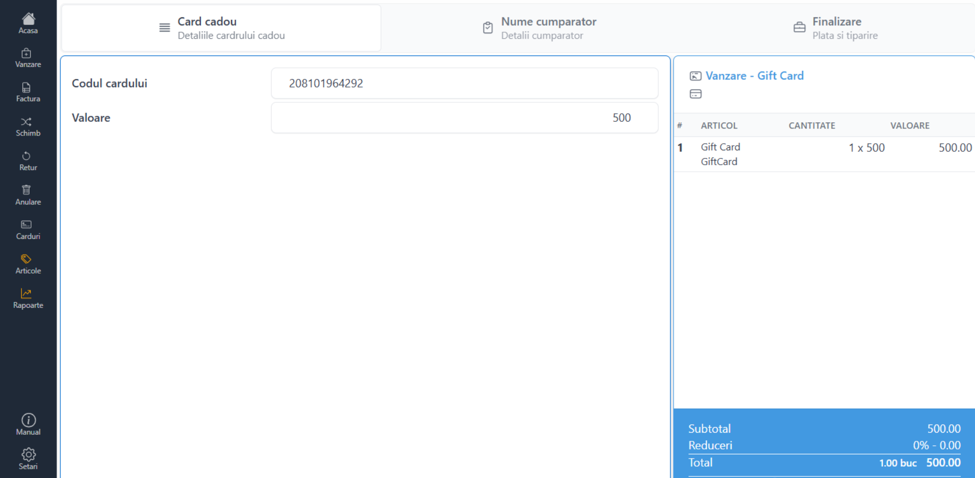
A gift card is sold from the Cards section — scan the barcode of the gift card and enter the value.
In the Buyer Name section, the billing data (natural person or legal person) are entered.
Also in the same section it is returned.
6. Closing the sale
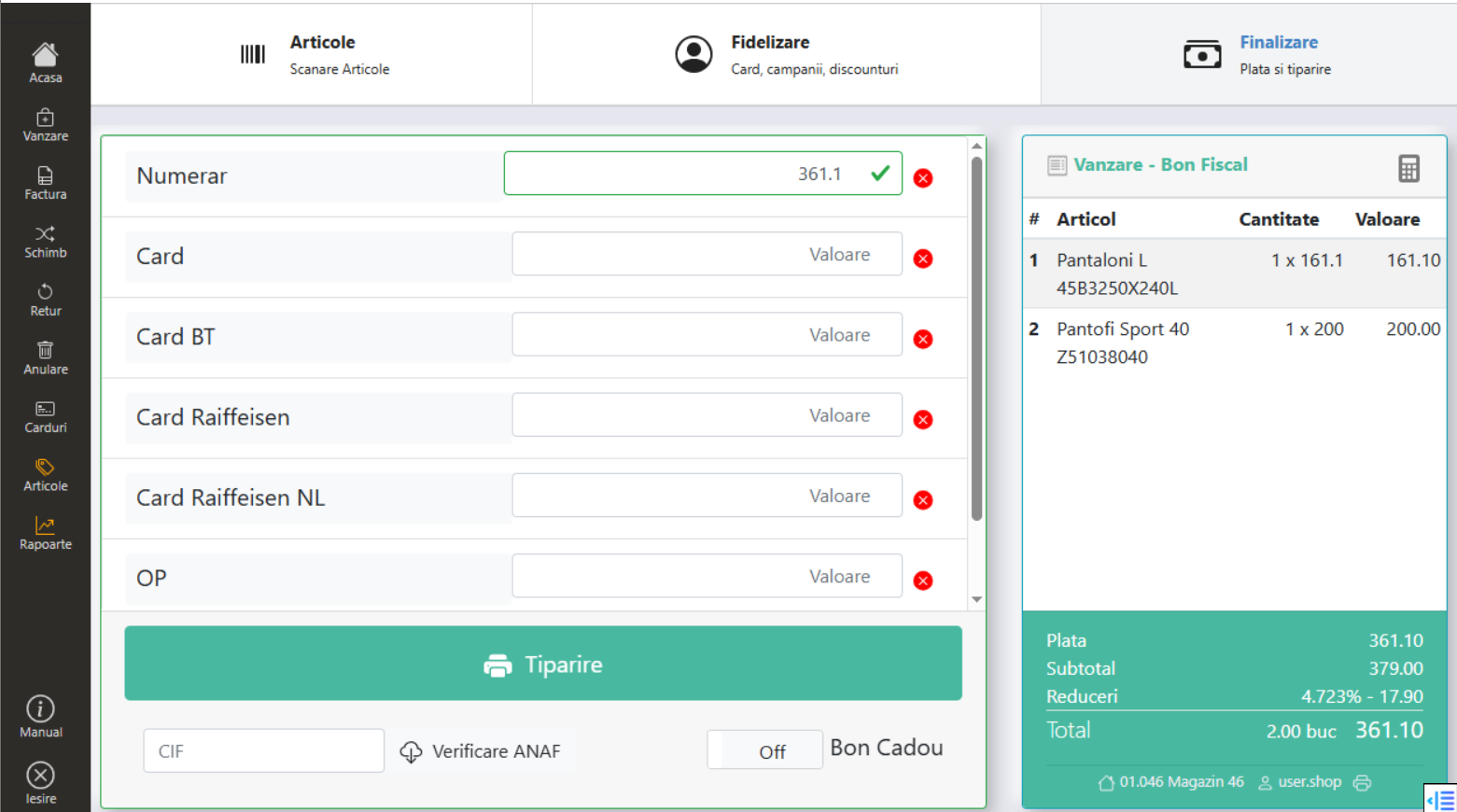
Press the Finish key. The payment window opens with the following options:
Payment methods: Cash, Card, Voucher, Marketing Voucher, Gift Voucher. The payment can be mixed — for example, partly cash and partly card, or voucher combined with cash. For each method, enter the corresponding amount.
The rule with vouchers: a voucher is used in full at a sale — no change is given on the voucher. If the product costs less than the value of the voucher, it is recommended that the customer choose an additional product. You can use several vouchers on the same sale.
Gift Voucher — for items purchased as gifts, the Gift Voucher option is activated (Off/On). An additional non-fiscal receipt is printed with the products, without price, with the data of the original receipt for the eventual exchange.
ANAF verification — if the customer requests a tax receipt for settlement, enter the CUI in the ANAF verification field. If it is found in the ANAF database, the name of the company is automatically displayed.
Click Print to issue the receipt.