Access
From the main menu, select Receipts and Dispatches → Documents to scan. The menu displays the number of documents to be processed. Click View Documents — Documents are organized into separate tabs.
Types of documents:
- Receipts from suppliers — based on invoices from suppliers
- Receipts from other stores — based on notices accompanying goods (internal transfer)
- Grouped orders — orders to be sent, grouped by recipient
Receptions
Select Document
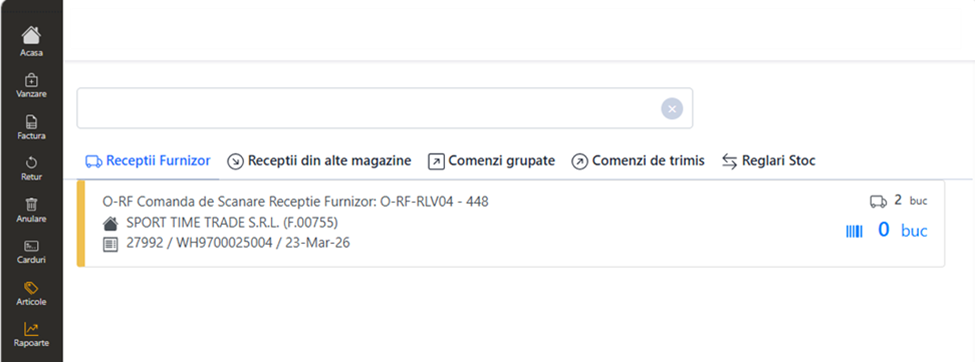
The Vendor Receipts or Other Store Receipts tab displays the documents for processing. Select the document for which the receipt is to be carried out.
Content Check
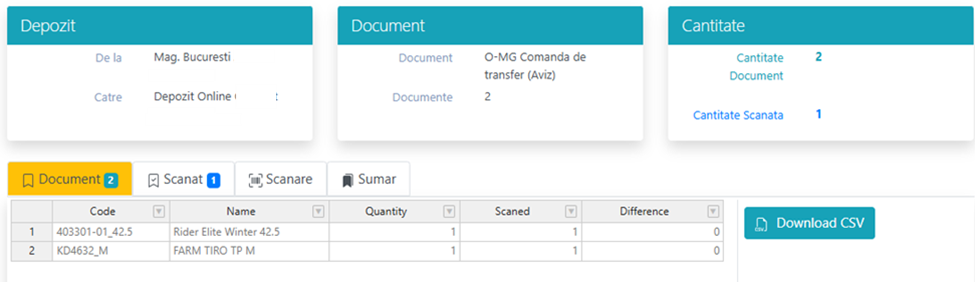
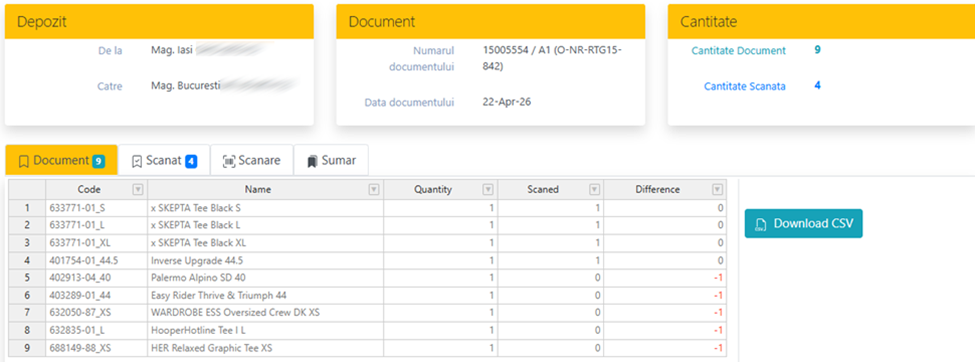
The Document tab shows: the item IDs and names, the quantity in the document, and the quantity scanned so far, including the difference.
Scan
Select the Scan tab. In the scan field, the item codes are entered or scanned, successively. Scanned items appear in the window on the right. All scanned products can also be viewed in the Scanned tab, with the possibility of grouping by item code or downloading them in a CSV file.
Delete erroneous scanned item: identify the item in the list, right click → Remove row.
Standby scan: When you close the browser window, all scans are saved. The operation can be continued later, until validation.
Validation
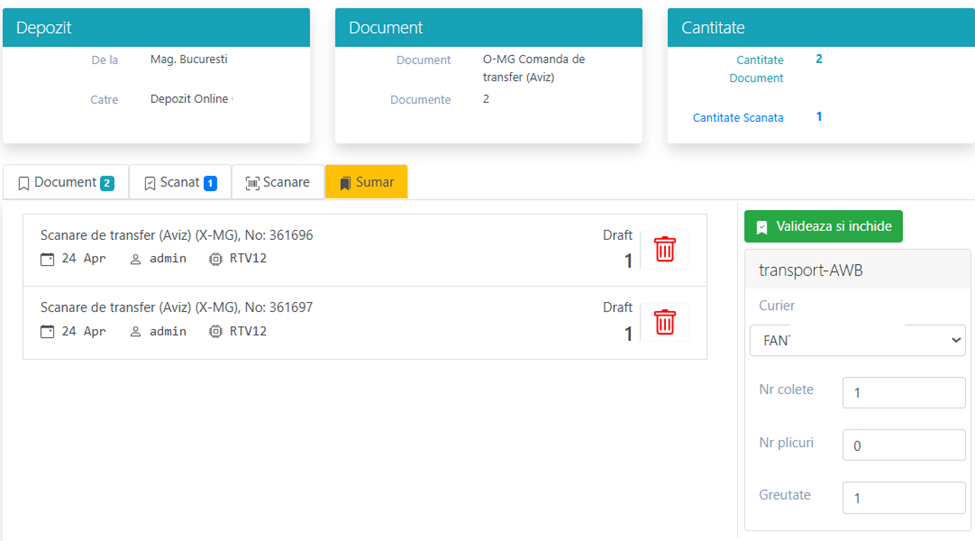
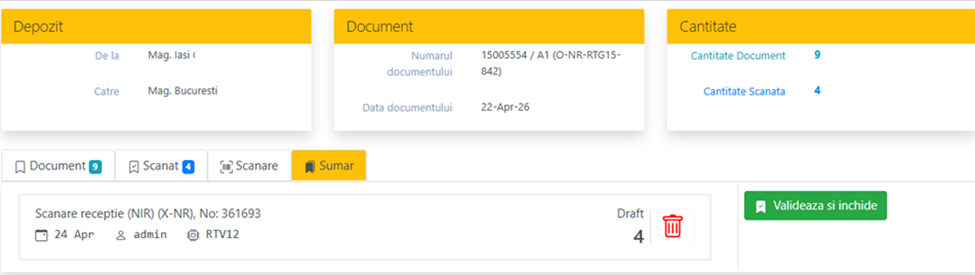
Once the reception (total or partial) is completed, it is validated from the Summary tab by pressing Validate and close, with confirmation. Upon validation, the supporting document is displayed for printing.
Partially scanned document: If the receipt has been partially validated, the document reappears in the processing list with only the items remaining to be received.
After validation, the number of unprocessed documents is automatically updated in the main menu.
Expeditions
Grouped Orders
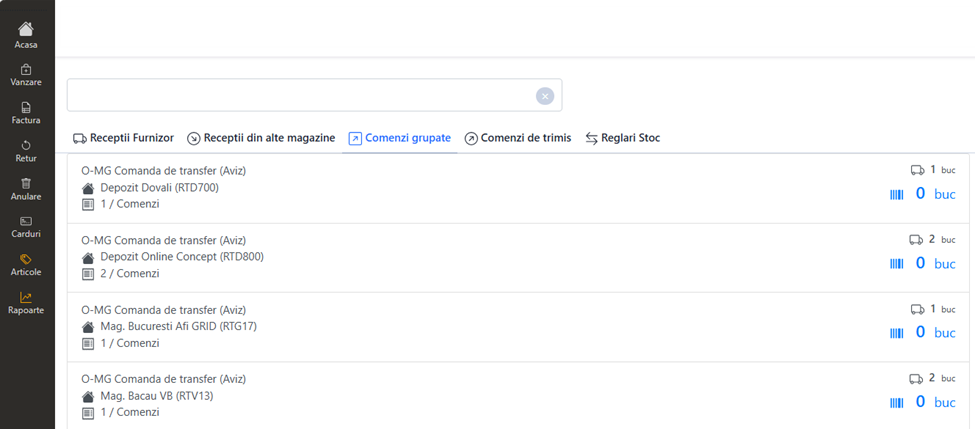
Important: Orders to be sent are processed from the Grouped orders tab, not individually. Bulk processing avoids making multiple separate deliveries to the same recipient — all orders for the same recipient are presented together.
Selection and Scan
The scan flow is identical to the one from the receipts: the document or grouping is selected, the items are scanned successively from the Scan tab, the scanned is checked in the Scanned tab.
Erroneous scanned item deletion and stand-by scanning works the same as at receptions.
Validation
Validation is done from the Summary tab through Validate and close, with confirmation. The supporting document is displayed for printing.